
You can change the appearance and behavior of the pages in your application. There are two levels of access to the characteristics of pages: at the developer's level, page characteristics are set using the Idea Studio and its associated tools. At the programmer's level, page characteristics can be set within a page's source file. Developer tools are described elsewhere in this guide.
The code for user-created widgets is very similar to that of page modules, and therefore much the following information also applies to them.
Caution: In general, it is recommended that custom code not be layered on top of existing page object code. For example, by attempting to make a Page Close button perform extra tasks before executing its own page-closing code. This may easily result in a race condition. Create dedicated code for each task instead.
Where to find the code for your pages:
For each page, there are two resource files, stored within your application in a folder named, "Pages". These are user-editable copies - any change must be imported into the application by an authorized user before it will become part of the running application.
- PageName.SRC The .SRC file contains the source code for the page.
- PageName.RUN The .RUN file is the last compiled version of the page.
The code of a page is a standard VTScada module A collection of states, scripts, variables, parameters, comments and possibly other modules, all of which make up a VTScada program.
Modules are separate tasks that run simultaneously in an application. Behind every page is a module and behind every tag on that page is an instance of another module (usually with submodules controlling separate tasks)., following all the rules of the VTScada language. It may begin with an optional set of parameters.
A collection of states, scripts, variables, parameters, comments and possibly other modules, all of which make up a VTScada program.
Modules are separate tasks that run simultaneously in an application. Behind every page is a module and behind every tag on that page is an instance of another module (usually with submodules controlling separate tasks)., following all the rules of the VTScada language. It may begin with an optional set of parameters.
(
   parmName <:"description text":> data_type;
)
Following the parameters (if any) will be the variable declarations.
[
   Title = "Overview";
   Color = 89;
   ...
]
Most pages will have one state, named "Main" by default when the page is created within the VTScada development tools. Typically, this is the only state in a page.
Pages are called modules that return their object value. Therefore all states within the page that display the user interface must include a Return(Self); statement.
All graphic entities added to a page within the Idea Studio will use the GUI- functions (GUIPipe, GUITransform, etc.), but you are free to use Z- functions if you are adding objects using code.
The order of the graphical statements within the page's state determines their display order (later statements have a higher z-order than earlier statements) and also the tab-order for user-input elements.
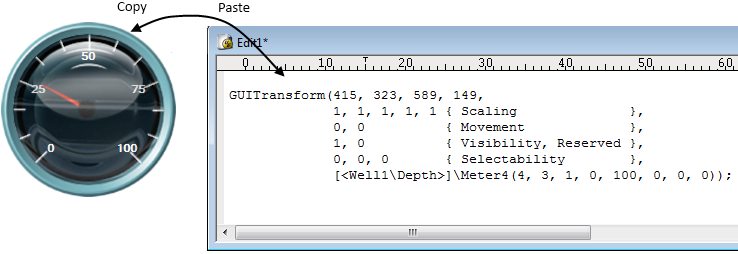
Tags are drawn using widget code, placed within GUITransforms. The widget code controls the appearance (meter, topbar, slider, etc.). The GUITransform controls the scaling and location.
Within the page code, each tag is referred to by its unique ID. This enables developers to rename tags at will without losing the associated graphic. If you copy the graphic, then paste it into an editor, VTScada will automatically look up the current name of the tag, and use that instead. (The absolute name will be used rather than the relative name, as indicated by the angle brackets.)
On Working With Page Code:
Do not edit a page's source code while simultaneously editing the page using the Idea Studio. Attempting to do so is likely to cause a conflict in the version control system.
To reduce the likelihood of a conflict, and to protect your source code, you can hide the page from the Idea Studio. Do so by adding the following line to the variable declaration section of your page:
CONSTANT HiddenPage = HPF_NOTINLISTS;
With this addition, your page can only be edited in code.
A second variable declaration you may want to add is one that will prevent tags from finding your page in response to a user selecting the Go To Page command in the Tag Browser (and other locations).
CONSTANT ExcludeFromTagSearch = TRUE;
Some objects should be displayed differently within the Idea Studio than they are when viewed by an operator. (For example, hotboxes are always visible in the Idea Studio but to an operator are invisible until the pointer is within their area.) The IsPreview variable is used to signal when a page is being edited (Idea Studio) or previewed (Page Menu Page, and lists of recently viewed pages or widgets).
Standard Variables within a Page’s Source File
All of the page elements that are accessible from the page editing dialogs are stored in the page's source code file and can be modified there.

DrawLabel
The DrawLabel variable specifies a title for the page. When used within a page's source code, the DrawLabel variable identifies not the text to use, but the name of a configuration variable whose value holds the text to be used as the page's title. For example, when DrawLabel is declared in the page's source code file as follows:
CONSTANT DrawLabel = "MyPageTitle";
VTScada will search the application's configuration for a variable named "MyPageTitle" and will use that variable's setting. In a multilingual application, the value will be a phrase identifier key.
MyPageTitle = Master Control Page
; entry in Settings.Dynamic
By using DrawLabel, you can modify the title of the page through the configuration variables without needing to access the application's code. This is particularly useful in situations where standard page names must be translated into another language, or otherwise customized for a particular application. Note that many of VTScada's labels are configured in the same way; a variable in the code points to a configuration variable that in turn provides the text for the label.
If the DrawLabel variable is absent from the page's source code file, or if DrawLabel is declared in the page's source code file, but the corresponding configuration variable is absent from the application, the value of the Title variable is used as the default. In the event that the Title variable is absent from the page's source code, then the module name is used as the text for the page's title.
Title
The display title for the page. In a multilingual application, the value will be a phrase identifier key.
May also be set as an expression within the body of the page's main state.
PageToolTipLabel
Text to display as a tool-tip when the page has been added to the navigation bar.
Bitmap
Name of the image to use for the page background.
NoStretch
The NoStretch variable is associated with the ScaleDisplayContent configuration variable, both of which enable you to control scaling for the pages comprising your application. When set to a non-zero value, ScaleDisplayContent causes the graphics on all system pages to scale to fit the dimensions of each page. ScaleDisplayContent affects all pages in an application, however, there may be selected pages to which you do not wish the scaling to apply. The NoStretch variable enables you to inhibit scaling for such pages. If NoStretch has a non-zero value, then the page will not be scaled regardless of the setting of the ScaleDisplayContent configuration variable.
Automated display scaling works reasonably well when enlarging the page. It cannot do as good a job when shrinking a display for a smaller screen. In particular, labels embedded within buttons or widgets are more likely to be truncated than scaled down.
Always design for the smallest screen that the application will be displayed upon.
PageWinOpt
The PageWinOpt variable overrides the normal options used for windowed pages (see the Window function for details). The default value for PageWinOpt is 0b1010000100110011.
PageX
The PageX variable enables you to set the X coordinate for the top left corner of a windowed page. If PageX is not set for a windowed page, a default value is used.
PageY
The PageY variable enables you to set the Y coordinate for the top left corner of a windowed page. If PageY is not set for a windowed page, a default value is used.
PageHeight
The PageHeight variable overrides the normal PageHeight calculation for a windowed page (see the Windowfunction for details). If not specified, the height is calculated from the page components.
PageWidth
As above, but for width.
PageMinHeight
Minimum number of pixels to use for the height when the page is displayed in its own window.
PageMinWidth
Minimum number of pixels to use for the width when the page is displayed in its own window.
PageVWidth
Maximum width, in pixels, of a windowed page.
PageVHeight
Maximum height, in pixels, of a windowed page.
PageBMPMarginsWin
A Boolean value (1 or 0) controlling whether a margin should be used when a windowed page displays an image.
PageBMPMarginLeft
Left margin to use when PageBMPMarginsWin is enabled.
PageBMPMarginBottom
Bottom margin to use when PageBMPMarginsWin is enabled.
PageBMPMarginRight
Right margin to use when PageBMPMarginsWin is enabled.
PageBMPMarginTop
Top margin to use when PageBMPMarginsWin is enabled.
Display Manager Bit Flags for Page Display
In addition to the modifiable variables within a page’s source file, the Display Manager defines and uses a set of bit flags that determine how a VTScada page is displayed.
Constant PSTTB = 0x0001 { Page Style - Show Title Bar };
Constant PSBMP = 0x0002 { Page Style - Show Title Bar Bitmap };
Constant PSLGN = 0x0004 { Page Style - Show Title Bar Logon Button };
Constant PSCFG = 0x0008 { Page Style - Show Title Bar Configure Button };
Constant PSDTE = 0x0010 { Page Style - Show Title Bar Date & Time };
Constant PSIND = 0x0020 { Page Style - Show Title Bar Alarm indicators };
Constant PSTTT = 0x00FF { Page Style - Show all Title Bar decorations };
Constant PSMBR = 0x0100 { Page Style - Show Task Bar };
Constant PSMNU = 0x0200 { Page Style - Show Menu Button and Menu };
Constant PSMPB = 0x0400 { Page Style - Show Task bar Page buttons };
Constant PSMFB = 0x0800 { Page Style - Show Task bar "<" and ">" buttons};
Constant PSMPM = 0x1000 { Page Style - Show Task bar "+" and "-" buttons};
Constant PSMHD = 0x2000 { Page Style - Hold page btn changes target };
Constant PSMMM = 0xFF00 { Page Style - Show all Menu Bar decorations };
There is a public variable, PageStyle, defined in the Graphics module in each session, which is an OR of the style bits that apply to a page. The initial setting is PSMMM + PSTTT, which is all decorations.
The address of the PageStyle variable is passed as a parameter to the MenuBar and TitleBar plug-ins.
Although PageStyle is public (because the MenuBar and TitleBar plug-ins need to see it) setting its value directly is ineffective because it is reset with each page change.
Whenever a new page is displayed, PageStyle is set as follows (in priority order)…
Normal page:
- Default value of a PageStyle variable in the page.
- The value of DefaultPageStyle.
Windowed page:
- Default value of a PageWStyle variable in the page.
- The values supplied in parameter 4 of the Display Manager method, ShowStyledPage.
- The value of DefaultPageStyle.
DefaultPageStyle defaults to the value that shows all decorations. This can be overridden by the configuration settings \DispMgrWPageStyle and \DispMgrPageStyle, or by parameter three of the DisplayManager method ShowStyledPage.
For example, to disable in all pages, the feature whereby a navigation bar button changes if you hold it down for more than 1.5 seconds, you have to set the configuration variable \DispMgrPageStyle to the value 0xFDFF (you cannot use the constant values defined in DisplayManager).
Application properties for pages
- DispMgrPageStyle - For all normal pages
- DispMgrWPageStyle - For windowed pages
(Please refer to Application Properties for the Display Manager for further information on these and other modifiable variables.)
For Custom pages you can use code similar to the following example to offset the top and bottom of the page in the Display Manager:
TopOffset = PickValid(And(Caller(Self())\PageStyle, \DisplayManager\PSTTB), 0) ?
            \DisplayManager\Task_Height : 0;
BottomOffset = PickValid(And(Caller(Self())\PageStyle, \DisplayManager\PSMBR), 0) ?
\DisplayManager\Menu_Height : 0;
